Features
One post, five platforms
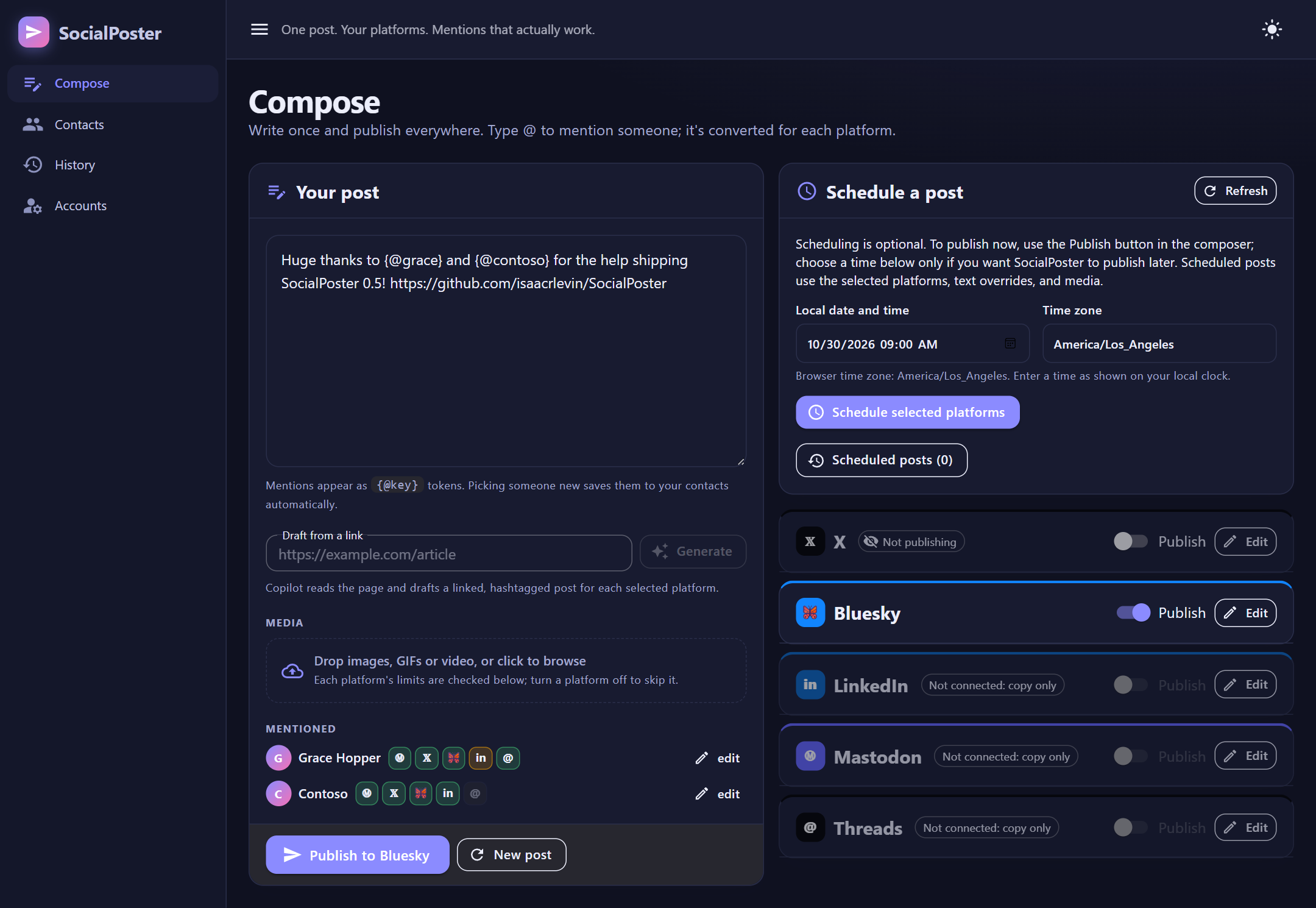
Write once for X, Bluesky, LinkedIn, Mastodon and Threads. Each platform gets its own preview with an accurate character counter, and you can customize the text per platform.
Mentions that work
Type @ to find someone. They're tagged properly on each platform, using their real identity there.
Schedule for later
Publish now, or pick a local date and time. Edit, reschedule or cancel until it goes out.
Images, GIFs & video
Attach media with per-platform limit checks and alt text on LinkedIn, Bluesky, X and Mastodon.
Import your contacts
Pull in everyone you follow on Bluesky, X or Mastodon, with duplicate review and merging.
AI account finder
An optional agent finds people's X and LinkedIn accounts and drafts posts from a link. Use GitHub Copilot, or any OpenAI-compatible provider, including local models.
Local and private
Runs on your computer. Credentials are encrypted in a local SQLite database and never leave it.
Reusable packages
Use the posting engine on its own from any .NET app, or embed the whole UI in your own Blazor host.
SocialPoster is built on .NET 10 with a MudBlazor UI (light and dark themes). Run it as a desktop app on Windows and macOS, host the Web project in your browser on Windows, Linux or macOS, or add its NuGet packages to your own app.
Quick start
There are three ways to use SocialPoster. They all run the same code, and the desktop app and Web project share one local data folder, so you can switch between them without reconnecting accounts.
Desktop app
Download and run it on Windows or macOS, in its own window. No .NET needed.
Host the Web project
Run it in your browser on Windows, Linux or macOS with the .NET 10 SDK, or change the app.
NuGet packages
Add posting, or the whole UI, to your own .NET 10 app.
Bluesky search and Copy text work without any account. Connect the platforms you want to publish to on the Accounts page. The account finder agent is optional; it needs the GitHub Copilot CLI (or a GitHub token), or an OpenAI-compatible provider such as a local Ollama model.
1. Desktop app (Windows and macOS)
Prebuilt apps are attached to every GitHub release.
Windows (Windows 10 version 1809 or later, with the WebView2 Runtime)
- Download
SocialPoster-windows-x64.zip(most PCs) orSocialPoster-windows-arm64.zip(Windows on Arm). - Right-click it, choose Extract All, and move the
SocialPosterfolder somewhere permanent, such as%LOCALAPPDATA%\Programs\SocialPoster. - Run
SocialPoster.MAUI.exe. Pin it to Start or create a desktop shortcut to find it again. - The app isn't code-signed, so SmartScreen may say Windows protected your PC the first time. Choose More info → Run anyway.
macOS (macOS 12 or later, Intel or Apple silicon)
- Download
SocialPoster-macos.zip, open it and dragSocialPoster.appinto Applications. - The app isn't notarized, so macOS blocks it the first time. Open it once, then go to System Settings → Privacy & Security and click Open Anyway. Or run
xattr -dr com.apple.quarantine /Applications/SocialPoster.appin Terminal. - To use GitHub Copilot as the agent, install the Copilot CLI (
npm install -g @github/copilot) and runcopilot login. The Windows app includes it; the Mac app doesn't.
To update, replace the folder or app with the new release; your data is stored separately and kept. Scheduled posts go out while the window is open, and links open in your default browser.
Build the desktop app from source
Install the .NET 10 SDK and the MAUI workload once (maui-windows on Windows, maui-maccatalyst on macOS, which also needs Xcode), then run it:
dotnet workload install maui-windows      # or maui-maccatalyst on macOS
git clone https://github.com/isaacrlevin/SocialPoster.git
cd SocialPoster/src/SocialPoster.MAUI
dotnet run
2. Host the Web project
Needs the .NET 10 SDK and Git. Works on Windows, Linux and macOS.
git clone https://github.com/isaacrlevin/SocialPoster.git
cd SocialPoster/src/SocialPoster.Web
dotnet run --launch-profile http
Your browser opens to http://localhost:5184 once the app is listening (set SocialPoster:LaunchBrowser to false to turn this off). The database is created automatically on first run, so there is no migration or setup step. The Web project runs the scheduling worker, so scheduled posts go out while it's running.
To start it without the SDK each time, publish it once with dotnet publish -c Release -o ~/socialposter-web -p:ErrorOnDuplicatePublishOutputFiles=false and run SocialPoster.Web from that folder. To change the port, set ASPNETCORE_URLS, for example ASPNETCORE_URLS=http://localhost:8080 dotnet run. It has no login, so keep it on localhost (see Security). To run the tests, use dotnet test from the src folder.
3. NuGet packages
Add one package to a .NET 10 project. Each includes the ones below it:
dotnet add package SocialPoster.Posting      # just posting: no database, UI or ASP.NET
dotnet add package SocialPoster.Core         # backend: storage, contacts, scheduling, agent
dotnet add package SocialPoster.Components # the full Blazor UI- Just posting: call
services.AddSocialPosting(), register anICredentialStorewith your tokens, resolveSocialPublisherand callPublishTextAsync. See the Posting README for a complete example. - The full app in your Blazor Server or MAUI host: call
AddSocialPosterCore()andAddSocialPosterComponents(), configure a persistent Data Protection key ring, callInitializeSocialPosterAsync()at startup, then map the/socialposterroutes and add the library's assets.
See Packages and embedding and the README's consumer guide for the full steps.
Connect your accounts
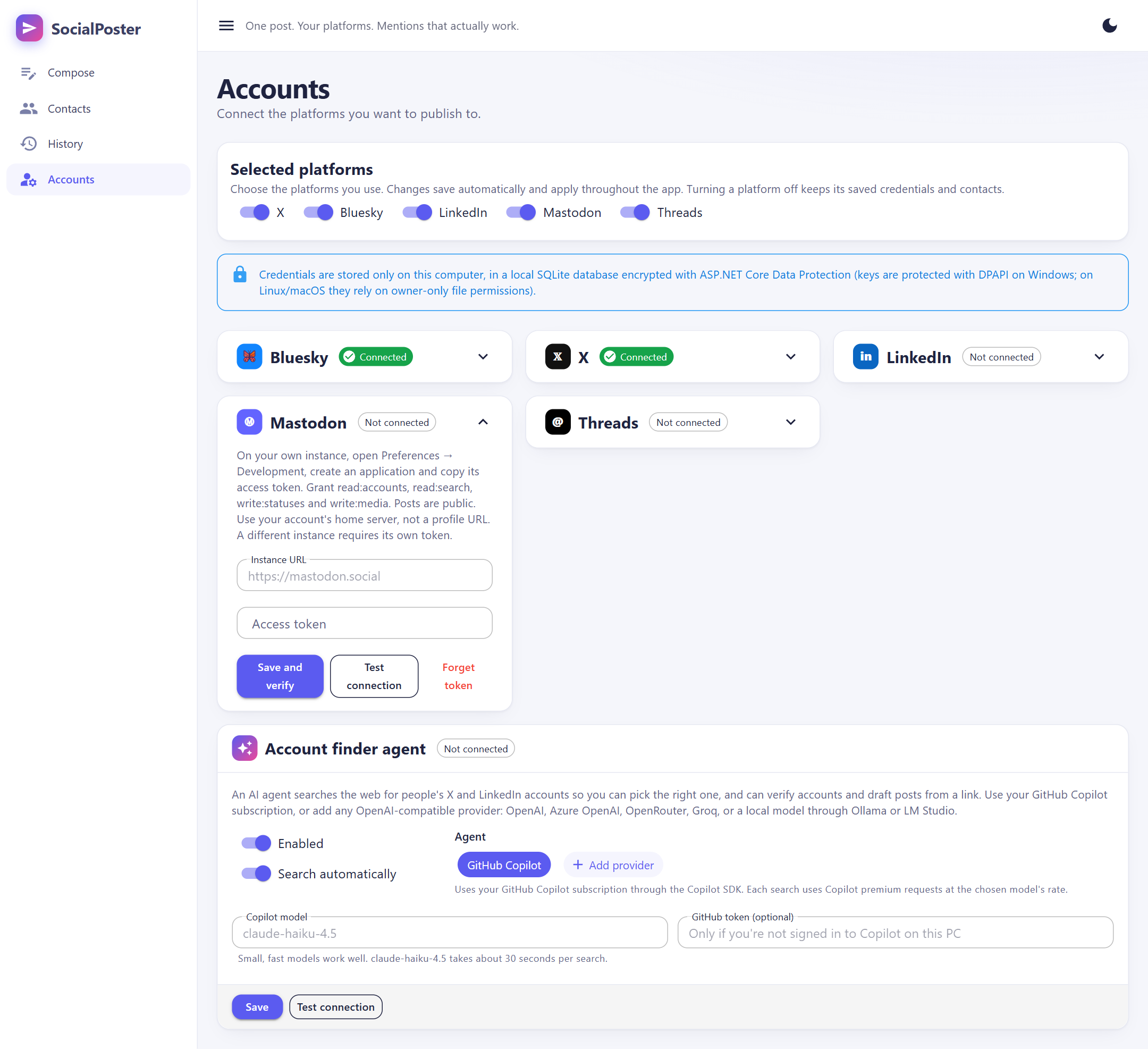
Open Accounts in the sidebar. Under Selected platforms, switch on the platforms you use; turning one off hides it everywhere but keeps its credentials and contacts. Then expand each platform's card to connect it. You only need to connect the platforms you want to publish to; the rest stay "copy only".
🦋Bluesky
- In Bluesky go to Settings → Privacy and security → App passwords and create one. Never use your main password.
- On the Accounts page enter your handle (for example
you.bsky.social) and the app password, then click Save. - Click Test login to confirm. If you're not on
bsky.social, set your PDS under Advanced.
Searching for people and importing your follows only needs your handle, not a password.
𝕏X
There are two ways to post to X.
Option A: browser (free). Turn on Post via browser instead in the X card and save. Publishing then opens x.com/intent/post in a new tab with your text pre-filled, and you click Post yourself. No API access or credentials are needed. This route can't attach media files and can't be scheduled.
Option B: X API (paid plan required).
- Create a project and app in the X developer portal.
- Set the app's permissions to Read and write.
- Generate an Access Token and Secret for your account. Do this after setting permissions, or the tokens will be read-only.
- Enter the API key, API key secret, access token and access token secret, then Save and Test. The app uses OAuth 1.0a user context.
Free X API tiers don't allow posting, and each username lookup counts against your plan. The credentials are also used by the Verify button in the contact editor and by Sync X follows.
inLinkedIn: get an access token
LinkedIn doesn't offer a "sign in and post" option for personal tools, so you create a small developer app and generate an access token for yourself. It's free and takes about five minutes. LinkedIn occasionally renames things in its portal, so labels may differ slightly.
- Create an app. Go to the LinkedIn Developer Portal and click Create app. Give it a name (for example "SocialPoster"), pick a LinkedIn Page to associate it with (create a free placeholder page if you don't have one), upload any logo, accept the terms and create it. If LinkedIn asks you to verify the app against the page, use Settings → Verify and have a page admin (usually you) approve it.
- Request the products. On the Products tab request both of these. They're self-serve and normally approved immediately:
- Share on LinkedIn, which grants
w_member_socialand is needed to post - Sign In with LinkedIn using OpenID Connect, which grants
openidandprofileand is used to find out who you are
- Share on LinkedIn, which grants
- Generate a token. Open the OAuth token generator, choose your app, tick the scopes
openid,profileandw_member_social, and click Request access token. Sign in and allow access. - Copy the token. It's a long string that usually starts with
AQ. - Paste it into SocialPoster. Go to Accounts → LinkedIn, paste it into Access token and click Save. The app verifies it with LinkedIn and shows "Connected as your name".
- Fix version errors if they appear. If LinkedIn rejects posts with a version error, change the API version field (format
YYYYMM) to a more recent month.
LinkedIn access tokens last about 60 days. When posting starts failing with an authorization error, repeat steps 3 to 5 to generate a fresh one. SocialPoster uses the token as-is: it never requests or revokes tokens, and Forget token only deletes the local copy.
Prefer to run the standard OAuth flow yourself? Add http://localhost as a redirect URL on the app's Auth tab and exchange the code for a token. Any token with the same three scopes works.
MMastodon
- On your home instance, open Preferences → Development, create an application and copy its access token. Grant
read:accounts,read:search,write:statusesandwrite:media. - On the Accounts page enter the HTTPS instance origin (for example
https://mastodon.social, not a profile URL) and the token, then click Save and verify. The account is checked before both values are encrypted and saved. Changing instance requires a new token; leaving the token blank keeps it only on the same instance. - Test connection checks the saved credentials. Forget token removes it locally; revoke it on your instance if needed.
Posts are public. Mastodon counts graphemes, URLs as 23 characters and remote mentions as their local @username. The app uses conservative defaults, not dynamic instance discovery: 500 characters; four 8 MB JPG/PNG/WebP images, one 8 MB GIF, or one 40 MB MP4/WebM video. Alt text becomes the media description (up to 1000 characters), and upload processing finishes before posting. Failed attempts can leave uploaded media on the server.
Connected-instance search works in the composer, and Contacts supports fully qualified user@server accounts, local-handle lookup/verification, profile links and Sync Mastodon follows. Stable identity uses the canonical ActivityPub actor URI, so Mastodon 4.2 or newer is required. HTTPS origins are required. OAuth authorization, token refresh and visibility selection are not included.
@Threads
- Create an app in the Meta developer portal with the Threads API, and add your Threads account as a Threads tester (accept the invite in Threads).
- Generate a user access token with
threads_basicandthreads_content_publish. - On the Accounts page paste it into Access token and click Save and verify. The app checks it with the Threads Graph API and shows "Connected as @username". Test connection re-checks it later; Forget token removes the local copy.
Threads posts are public and text only: the API accepts media only by public URL, not uploads, so selecting Threads with attachments shows a validation error. A post's last link is shown as a link-preview card. Text is counted in graphemes against a 500-character limit. Contacts store a Threads username, which you add by hand (follow sync isn't available). SocialPoster doesn't refresh the token, so generate a new one when it expires.
✨ Account finder agent (optional)
An AI agent can search the web for someone's X and LinkedIn accounts and suggest matches, verify a handle or profile, and draft posts from a link. It's useful because LinkedIn has no member search and X lookups cost API requests. Configure it under Accounts → Account finder agent, and choose the agent from the chips:
- GitHub Copilot (default). It uses the account you signed into with
copilot login. On Windows the app reads the CLI's saved token from Credential Manager. On Linux and macOS setGH_TOKENorGITHUB_TOKEN, or paste a GitHub token in the card. The default model isclaude-haiku-4.5; a search takes about 30 to 45 seconds and uses Copilot premium requests. - Your own provider. Click Add provider and start from a preset: OpenAI, Microsoft Foundry (just the endpoint, key and deployment name), OpenRouter, Groq, or a local model through Ollama (
http://localhost:11434/v1) or LM Studio. Enter the model and, for hosted services, an API key. Test checks it before you save. Keys are encrypted and only sent to that provider; plainhttp://is allowed only for this computer or your local network. Choose a model that supports tool calling.
Custom providers can't browse the web, so pick a Web search service for them: Brave Search or Tavily (API key, both have free tiers), or your own SearXNG instance (free, enable json in search.formats). A built-in page reader refuses local and private addresses, and page content is treated as untrusted. Copilot uses its own search and fetcher, which gets past X and LinkedIn login walls more often, so verification works best with Copilot.
Searches run on demand, or automatically once per contact when you mention someone without an X or LinkedIn account. Turn off Search automatically or Enabled in the same card.
GitHub Copilot: tokens and permissions
- You need an active Copilot subscription. Searches are billed to it as premium requests. Organization or enterprise policies (SSO, IP allow lists, enabled models) still apply.
- SocialPoster uses the first token it finds: the GitHub token saved in the card, then
GH_TOKEN, thenGITHUB_TOKEN, then (Windows only) yourcopilot login. A token in the card or environment replaces the CLI login. - Supported tokens: OAuth tokens from
copilot loginorgh auth login(gho_), GitHub App user tokens (ghu_) and fine-grained personal access tokens (github_pat_). Classic tokens (ghp_) don't work. - To create a fine-grained token, open Fine-grained tokens, set Resource owner to your personal account (not an organization), leave repository access at public repositories, and under Permissions → Account add Copilot Requests. No repository permissions are needed. Authorize it for SAML SSO organizations if required.
- Test connection lists the models your plan can use.
Your own provider: keys
The agent only calls /chat/completions with tools, sending the key as a bearer token. Pick a model that supports tool calling.
| Provider | Key and settings |
|---|---|
| OpenAI | Key from platform.openai.com/api-keys; the project needs billing or credits. For a restricted key, set the top-level Model capabilities permission to Request (Write in older UI), not just its Chat completions sub-item. |
| Microsoft Foundry | Deploy a tool-capable chat model, then enter the endpoint, a key from Keys and Endpoint, and the deployment name. Any endpoint the portal shows works (resource, project, or a deployment's target URI); SocialPoster converts it to the resource's /openai/v1 URL. API-key authentication must be enabled on the resource; Entra ID sign-in isn't supported. |
| OpenRouter | Key from openrouter.ai/keys. Choose a model with tools support; add credits or use a rate-limited free model. |
| Groq | Key from console.groq.com/keys. Choose a model that supports tool use. |
| Ollama | No key. ollama pull llama3.1 (or qwen2.5) and keep Ollama running. For another PC on your network, start it with OLLAMA_HOST=0.0.0.0. |
| LM Studio | No key. Load a tool-capable model and start the server on the Developer tab (port 1234); enable Serve on Local Network for other PCs. |
Plain http:// works only for this computer or private network addresses.
Web search service
- Brave Search: create an account at the Brave Search API dashboard, activate the Search plan (a card is required; a monthly free credit is included) and create a key under API Keys.
- Tavily: sign up at app.tavily.com and copy the
tvly-…key. The free plan has 1,000 credits a month; each search uses one. - SearXNG: use your own instance. Add
jsontosearch.formatsinsettings.yml(for exampleformats: [html, json]) and restart, or searches return 403. If its limiter is on, turn it off for a private instance or add this computer's IP topass_ipinlimiter.toml.
Using the app
Writing, mentions and previews
Write your post and type @ to find people. A mention is stored as a platform-neutral token such as {@grace} that points to a contact, which holds that person's identity on each platform.
| Platform | What's posted | Needs |
|---|---|---|
| X | @username | X username |
| Bluesky | @handle plus a real mention facet | Handle / DID |
@[Name](urn:li:…) in the post text | Exact LinkedIn name and URN | |
| Mastodon | @user@server | Fully qualified acct |
| Threads | @username | Threads username |
If a contact has no account on a platform, their plain name is used and the preview shows a warning. Each platform has a card in the composer: switch Publish on or off, and click Edit to open its preview with the character count, warnings, Copy text and Customize for … to override the text for that platform.
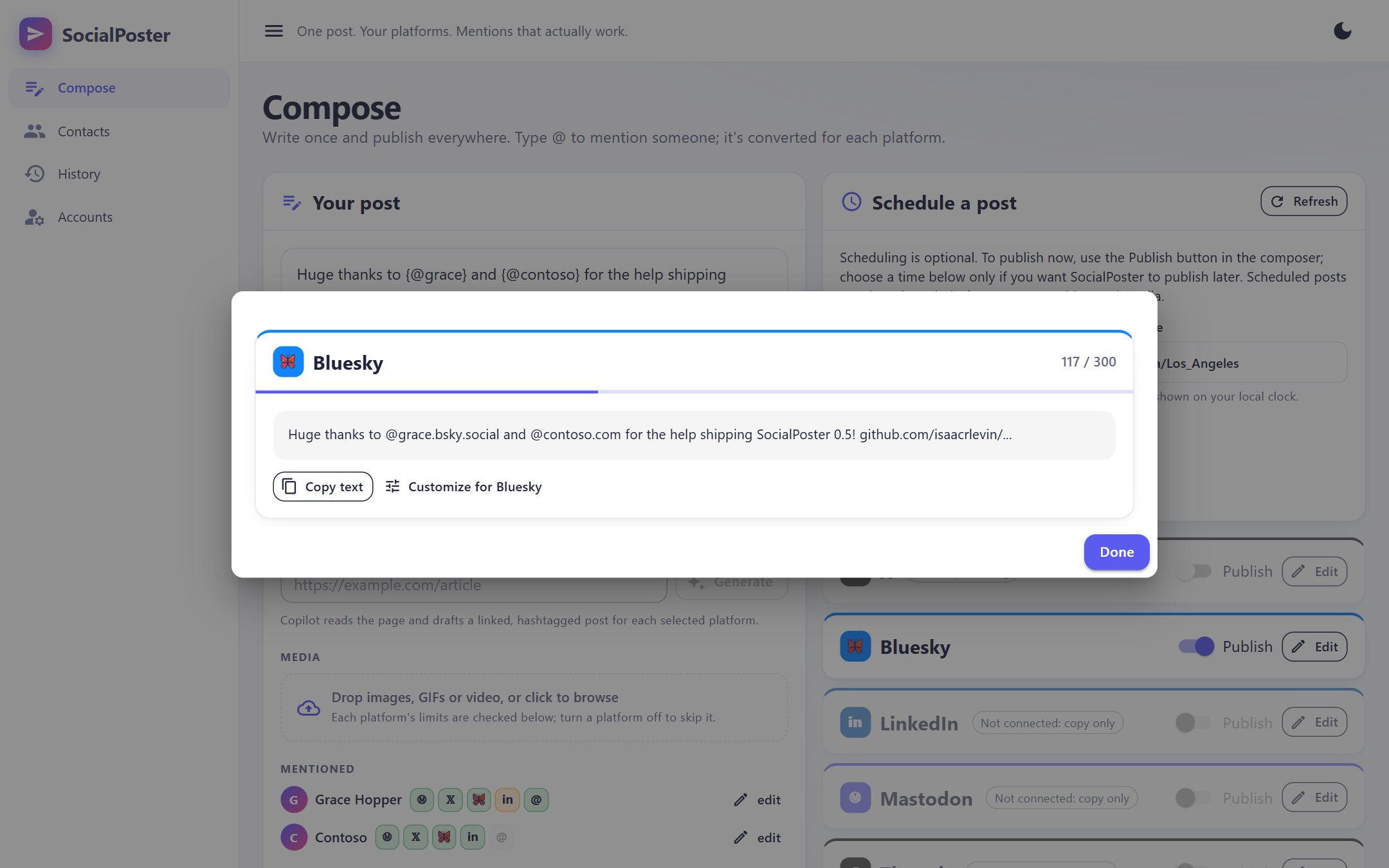
- X counts emoji and CJK characters as 2, and every link as a fixed 23 characters.
- Bluesky shortens links the way the official app does, stores the full URL as the link target, and attaches a link-preview card when the post contains a link.
- Mastodon and Threads count graphemes against 500 characters; Mastodon counts URLs as 23.
- LinkedIn people can't be tagged by apps without partner access. After publishing, a Tag by hand checklist lists each person with a copy button and their profile link. Company pages with a numeric ID are tagged automatically.
Draft from a link
Enter an article's URL in Draft from a link and click Generate. The account finder agent reads the page and writes shared text plus a linked, hashtagged customized draft for each selected platform. Use each platform's Use shared text or Customize control to switch versions, and check the character counts before publishing.
Scheduling
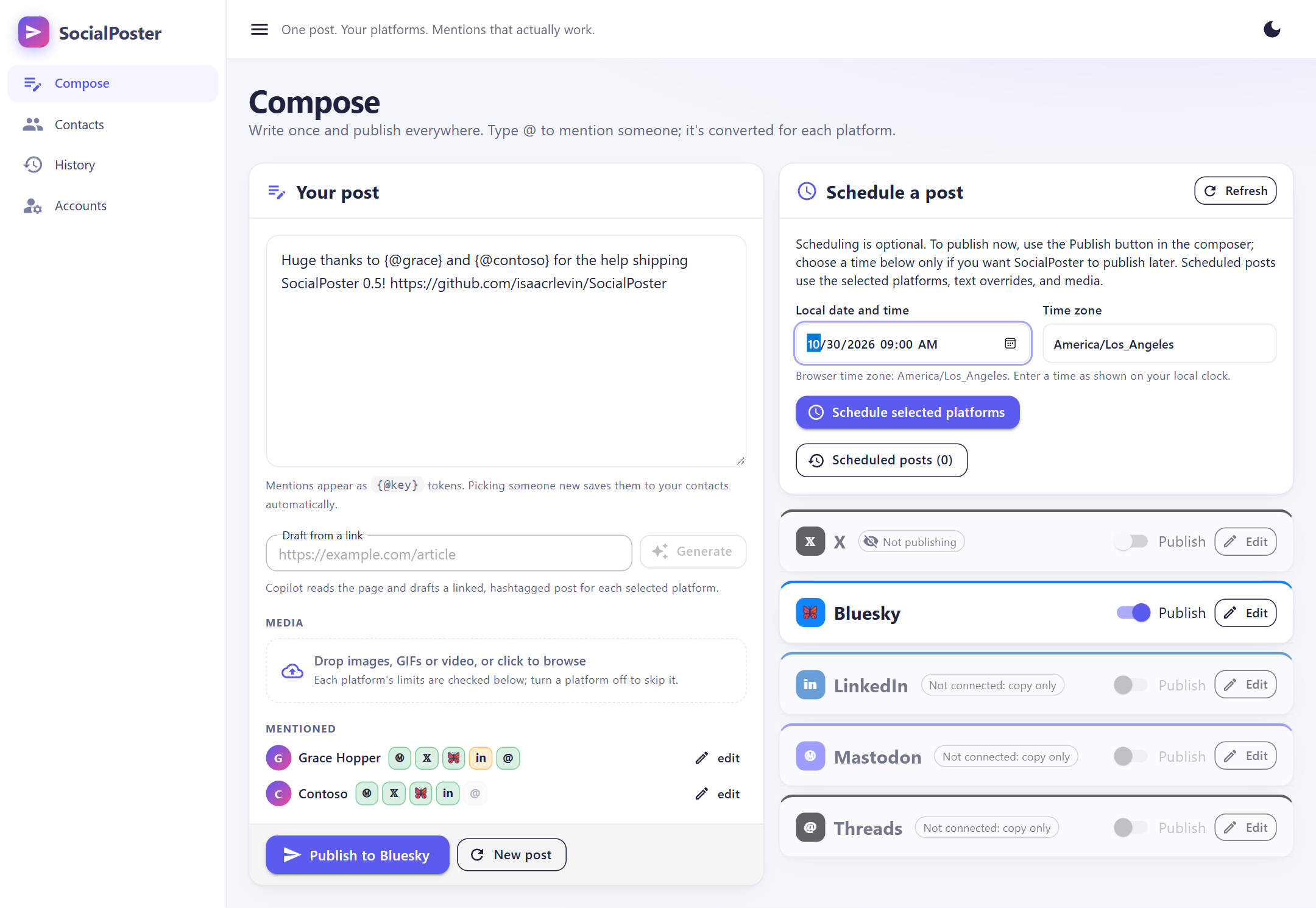
Scheduling is optional. Use Publish to … to publish now, or choose a local date and time in Schedule a post and click Schedule selected platforms. Scheduled posts use the selected platforms, text overrides and media.
- Mentions are resolved and each platform's text is validated when you schedule. Media is copied into the data folder; credentials are read only when the post goes out.
- Enter the time as shown on your clock and pick the time zone. Times skipped by a daylight-saving change are rejected; times that occur twice ask you to choose an offset.
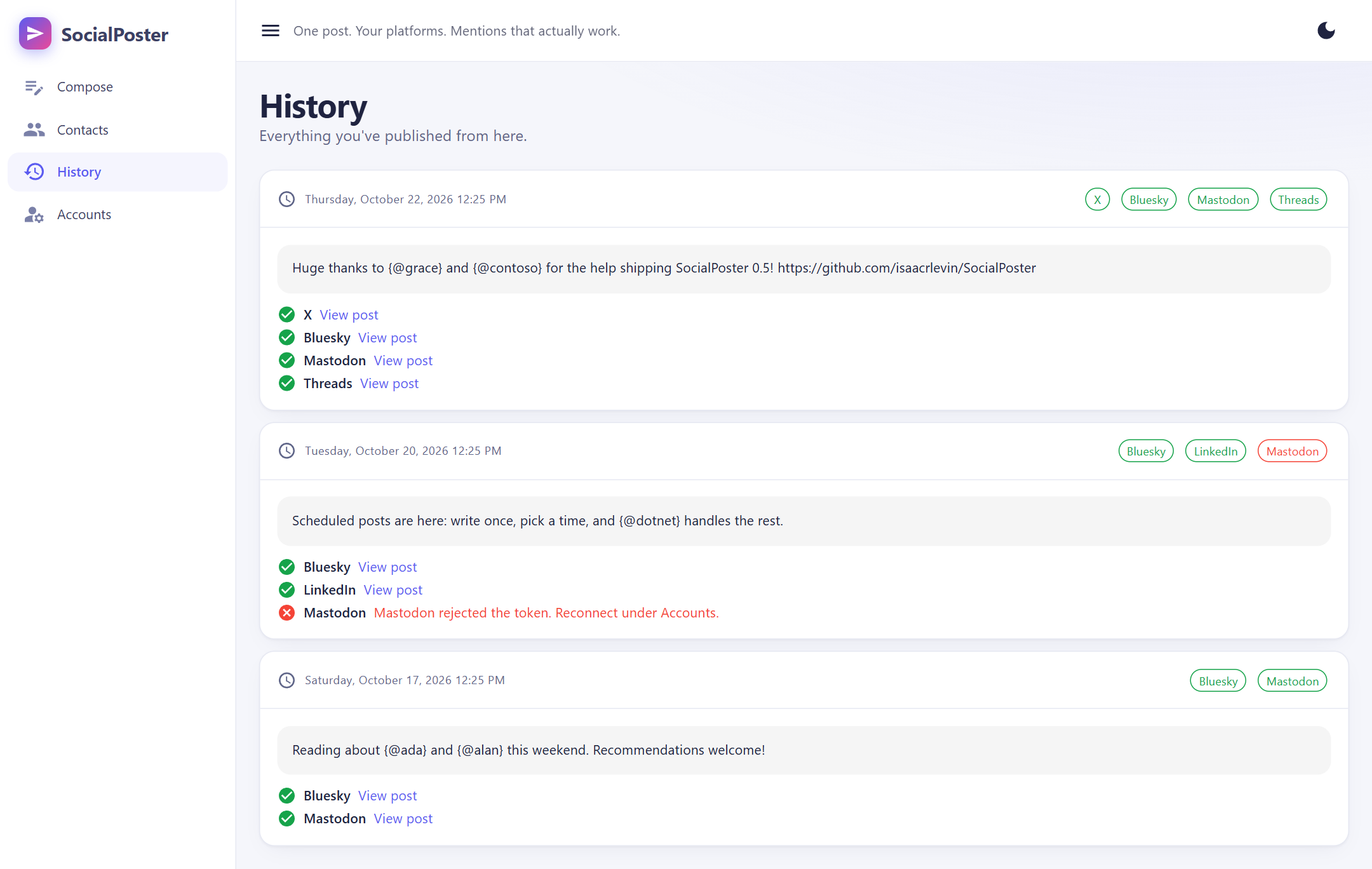
- Scheduled posts lists every schedule with per-platform results. Until delivery starts you can Edit content, Reschedule or Cancel schedule.
- The app must be running around the due time. Posts more than 24 hours overdue expire rather than publishing unexpectedly. Rate-limited attempts are retried; a timeout is marked uncertain and not retried, because the platform may already have the post.
- X's browser mode can't be scheduled, because you finish publishing yourself. Deselect X to schedule the other platforms.
Images, GIFs and video
Drop files onto the Media area under the post box, or click to browse. Each platform's limits are checked live, and you can switch a platform off to skip it. Add alt text to images for screen readers.
| Platform | Images | GIFs | Video |
|---|---|---|---|
| inLinkedIn | Up to 20 (JPG/PNG, 10 MB each) | 1 (10 MB) | 1 (MP4, 75 KB to 500 MB, 3 s to 30 min) |
| 🦋Bluesky | Up to 4 (JPG/PNG/WebP, under 1 MB each) | Not supported by Bluesky | 1 (MP4/MOV/WebM, 100 MB, 3 min) |
| 𝕏X (API) | Up to 4 (JPG/PNG/WebP, 5 MB each) | 1 (15 MB) | 1 (MP4/MOV, 512 MB) |
| MMastodon | Up to 4 (JPG/PNG/WebP, 8 MB each) | 1 (8 MB) | 1 (MP4/WebM, 40 MB) |
| @Threads | Text only: the Threads API can't take uploaded media | ||
A post can have images or one GIF or one video, not a mix. X's browser composer can't receive files, so attach media there by hand.
Importing your follows
Instead of adding people one at a time, bring in everyone you follow. The Contacts page offers a sync button for each enabled platform that supports it:
- Sync Bluesky follows needs only your Bluesky handle, not an app password.
- Sync X follows needs all four X API credentials with Post via browser instead turned off, and uses your X API quota.
- Sync Mastodon follows imports the connected account's following list.
Before syncing, the Handle Duplicates prompt offers Yes, review, Sync without handling, or Cancel. A running count is shown, and at the end you'll see how many contacts were added and refreshed. It's safe to run again: people are matched by stable platform IDs, handles and explicit profile links, never just by name.
If you choose to review, the sync pauses before saving an account whose identities or profile links conflict with a saved contact, or whose name suggests a possible duplicate. Pick the saved contact and merge them (resolving each platform's identity), keep the account separate, skip it, or cancel the remaining sync. Completed imports are kept if you cancel or leave the page. Close an open contact editor before syncing.
Managing contacts
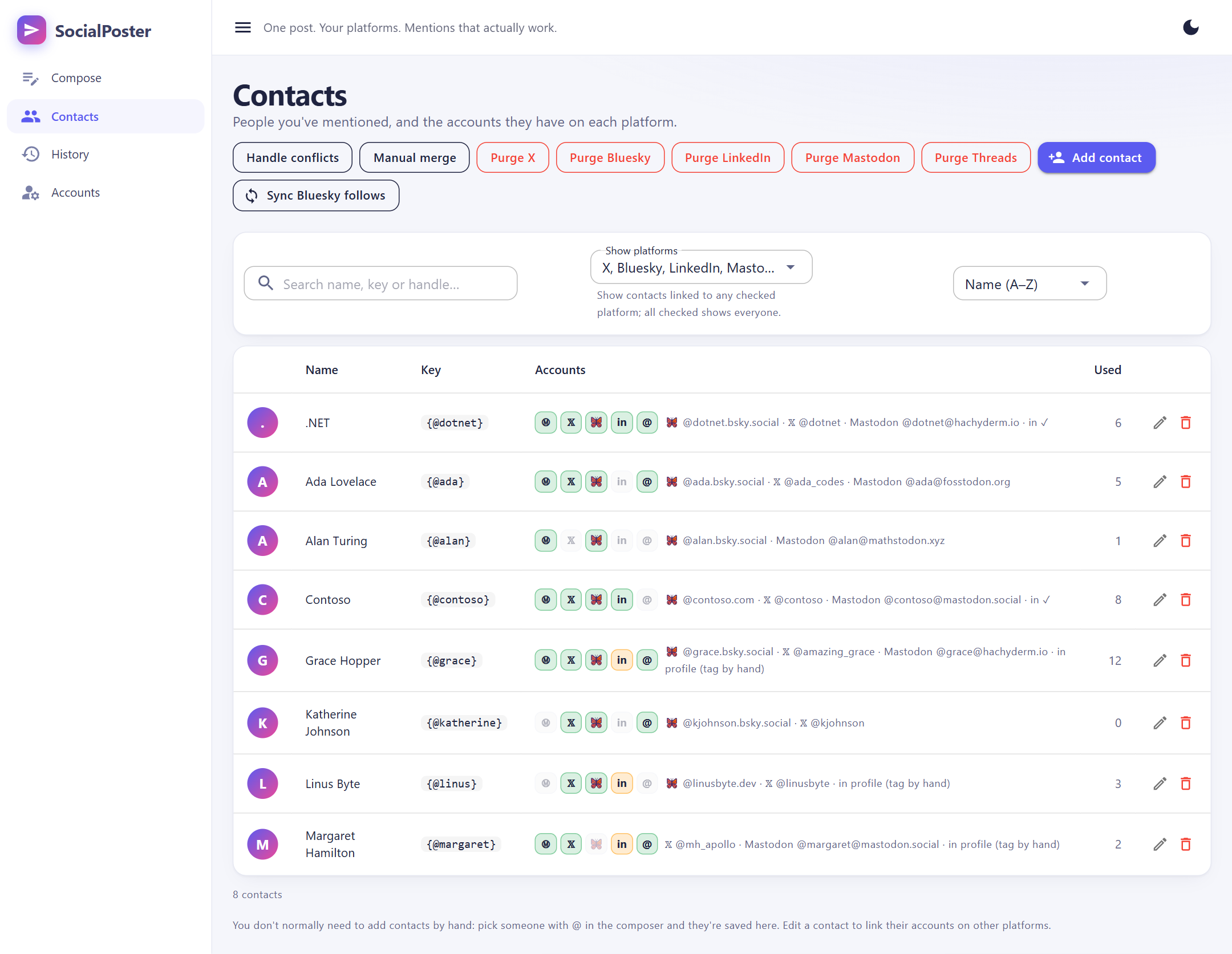
Every person you pick with @ is saved automatically. The Contacts page lets you search by name, key or handle, show contacts linked to chosen platforms, sort (A to Z, most used, recently used or added), and edit or delete anyone. In the editor you can link accounts on each platform, verify them, and run the account finder.
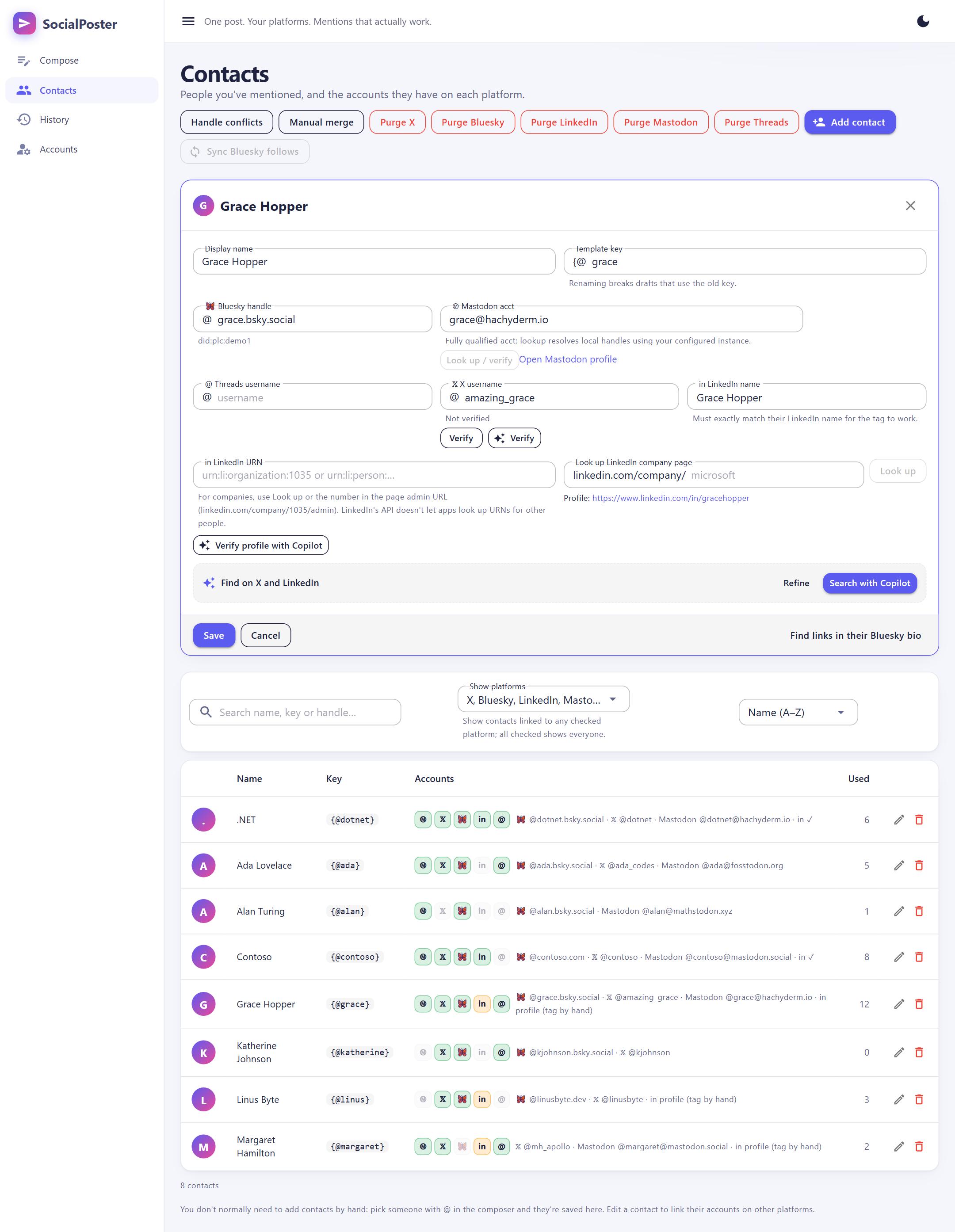
- Handle conflicts scans for likely duplicates (same identities, profile links in bios, or similar names) and lets you review and merge them. Results are saved until you dismiss or rescan.
- Manual merge lets you tick any two contacts and merge them. The survivor keeps its key, and the other key keeps working in existing posts and drafts.
- Purge <platform> removes one platform's identities from all contacts and deletes contacts left with no accounts. History is kept. Maintenance can't be undone.
Screenshots
Configuration
There are no API keys to put in config files: credentials are entered on the Accounts page and stored locally. The sample host binds the SocialPoster configuration section.
| Setting | Default |
|---|---|
SocialPoster:DataDirectory(env SocialPoster__DataDirectory) | %LOCALAPPDATA%\SocialPoster on Windows~/.local/share/SocialPoster on Linux~/Library/Application Support/SocialPoster on macOS |
SocialPoster:DatabaseFileName | socialposter.db (file name within the data folder) |
SocialPoster:PostingTimeout | 00:30:00 (allows large media uploads) |
SocialPoster:LaunchBrowser | true (open the browser at startup) |
SocialPoster:Scheduling:PollInterval | 00:00:15 (how often due posts are checked) |
SocialPoster:Scheduling:MaxLateness | 1.00:00:00 (older due posts expire) |
SocialPoster:Scheduling:MaxAttempts / RetryDelay | 3 / 00:05:00 (rate-limit retries) |
The folder holds socialposter.db (SQLite), keys/ (the Data Protection key ring) and scheduled-media/ (attachments for scheduled posts). Keep them together: the database can't be decrypted without keys/.
Packages and embedding
SocialPoster is published to NuGet as three packages that share one version:
| Package | Use it for |
|---|---|
SocialPoster.Posting | Posting to all five platforms from any .NET app. No database, UI or ASP.NET: just AddSocialPosting(), an ICredentialStore and SocialPublisher. |
SocialPoster.Core | The app backend: SQLite storage, encrypted settings, contacts, history, optional scheduling and the account finder agent. |
SocialPoster.Components | The full Blazor UI, for an interactive server host or a .NET MAUI Blazor Hybrid app. |
Install
Add one package with the .NET CLI. Each includes the ones below it, so SocialPoster.Components brings in Core and Posting:
dotnet add package SocialPoster.Components   # full Blazor UI
dotnet add package SocialPoster.Core         # backend only
dotnet add package SocialPoster.Posting      # just posting
Add --version 0.6.1 to pin a version. In Visual Studio, use Manage NuGet Packages and search for SocialPoster, or run Install-Package SocialPoster.Components in the Package Manager Console. To build against the source instead, clone the repository and add a project reference:
dotnet add reference path/to/SocialPoster/src/SocialPoster.Components/SocialPoster.Components.csprojYour project must target .NET 10.
Scheduling is opt-in for hosts (AddSocialPosterScheduling() and AddSocialPosterSchedulingWorker()), with replaceable storage, media and credential adapters and a SQL Server store for shared deployments. See the README's package consumer guide for registration, database initialization, routing, scheduling and security responsibilities. The libraries retain the local single-user storage model; they do not add authentication or change the host's Data Protection identity.
Security
The app has no login. Anyone who can reach it can post as you, so keep it bound to localhost and don't expose it to a network or the internet.
- Credentials, including agent provider and web search API keys, are encrypted with ASP.NET Core Data Protection. On Windows the key ring is protected with DPAPI. On Linux and macOS there's no OS-level key protection, so the keys rely on owner-only file permissions (the app sets the data folder to
700). Treat the folder like an SSH key. - Use a Bluesky app password, never your main password.
- Forgetting a LinkedIn, Mastodon or Threads token only removes the local copy; it doesn't revoke it on the platform.
- Mastodon and Threads tokens are only sent to their own hosts; those clients never follow redirects.
Limitations
- No multi-post threads (reply chains). Media is limited to what each platform accepts: Bluesky doesn't support GIFs, and Threads is text only.
- No OAuth sign-in flows. You paste tokens generated on each platform, and SocialPoster never refreshes them.
- Scheduled posts only go out while the app (its scheduling worker) is running.
- LinkedIn people can't be tagged automatically unless you know their URN. The finder gets their profile URL and you tag them by hand after posting. Organization vanity lookup needs Community Management API access.
- X lookups and posts cost money depending on your plan, unless you use the free browser option, where you click Post yourself.
- Posting to a LinkedIn company page isn't supported; posts go from your personal account.
Troubleshooting
LinkedIn says the token is invalid or expired
Tokens last about 60 days. Generate a new one with the scopes openid, profile and w_member_social and save it again. Make sure both products (Share on LinkedIn and Sign In with LinkedIn using OpenID Connect) are approved for your app.
LinkedIn rejects posts with a version error
Change API version on the LinkedIn card to a more recent YYYYMM value.
X returns "payment required" or "forbidden"
Your API plan doesn't include posting, or the tokens were generated before you set Read and write permissions. Either regenerate the tokens, or switch to Post via browser instead.
Bluesky rejects an image
Bluesky images must be under 1 MB each and can't be mixed with video. GIFs aren't supported. Resize or compress the image and try again.
Mastodon or Threads won't save the token
Save and verify checks the token with the platform before saving. For Mastodon, use the HTTPS origin of your home instance (not a profile URL) and make sure the token has the four scopes listed above. For Threads, make sure your account accepted the tester invite and the token includes threads_basic and threads_content_publish.
Threads says media isn't supported
The Threads API only accepts media by public URL, so SocialPoster posts text only there. Remove the attachments, or switch Threads off for this post.
A scheduled post didn't go out
The app must be running when the post is due. Open Scheduled posts to see each platform's result: expired means it was more than 24 hours overdue; uncertain means the request timed out and it may have been posted, so check the platform before posting again.
The account finder says it has no token, or finds nothing
For Copilot, run copilot login, set GH_TOKEN / GITHUB_TOKEN, or paste a GitHub token under Accounts → Account finder agent. On Linux and macOS the saved CLI login isn't read automatically. If you get an authentication error with a token, make sure it's a fine-grained token with the Copilot Requests permission, not a classic ghp_ token, and that a stray GH_TOKEN isn't overriding your login. For your own provider, make sure a web search service is configured and the model supports tool calling; small local models often don't. A 401 or 403 from the search service means the key is wrong; from SearXNG it usually means JSON output isn't enabled.
My credentials disappeared after moving the data folder
The database is encrypted with the keys in keys/. Move or back up the whole folder together. If the keys are lost you'll need to re-enter your credentials.
The browser blocked the new tab after publishing
For X browser posting and LinkedIn tagging, the app opens a new tab. If your pop-up blocker stops it, use the Open again or View post link in the results instead.